Organize reward app emails for faster redemptions
Stop losing reward codes. Use labels and filters to sort play-to-earn emails, speed redemptions, and keep payouts on track with simple Gmail, Outlook, and Apple Mail rules.
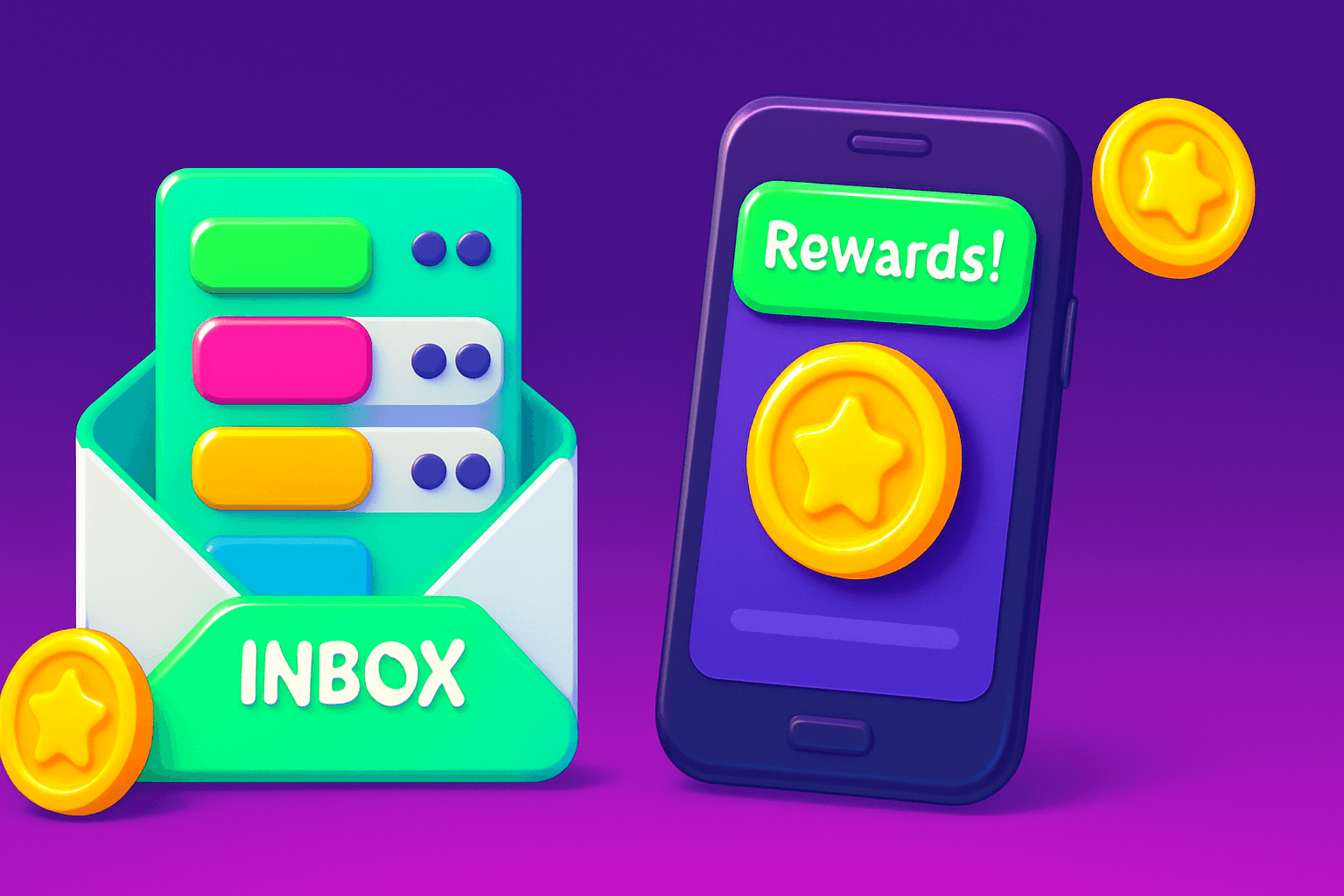
Stop losing reward codes, redeem faster
Reward emails arrive at odd times: limited-time promo codes, instant gift cards, or verification links you must click within hours. If you want to grab the value before it expires, labels and filters are the fastest route. This guide shows how to set up inbox rules in Gmail, Outlook, and Apple Mail so you can find and redeem rewards without digging through promo clutter.
Practical expectations: most play-to-earn and rewards apps pay modestly. Real users often make $10 to $150 per month. Playpot, tagline: "Tap. Play. Cash out." It supports these reward methods: PayPal, Venmo, Cash App, Zelle, gift cards and works on Web, iOS, Android, Desktop.
Why labels matter
- Speed: a label surfaces the exact emails that matter. Instead of searching, you click a label.
- Accuracy: filters catch senders and keywords so you do not miss a time-limited code.
- Action focus: put emails you must act on at the top of the list with stars, snooze, or important flags.
Labels save minutes each redemption. Those minutes add up when an app limits redemptions per claim window or sends a one-time code.
Gmail: set up labels and filters in 3 steps
- Create clear labels. Examples: Rewards/Playpot, Surveys, AppOffers, Gift-Cards. Short and consistent names are easier to scan on mobile.
- Make a filter. Click the search bar, type sender and keywords, then Create filter.
- Example query: from:(playpot OR "no-reply") subject:(redeem OR code OR "cash out" OR "gift card")
- Check: Apply the label, Skip the Inbox if you prefer a single rewards view, and Never send it to Spam.
- Use multiple conditions. If an email is likely to include a PDF voucher, add "has:attachment". If codes include the word "claim", add that to subject filters.
Gmail tips:
- Turn on multiple inboxes or use the label sidebar so your Rewards label appears as a column on desktop.
- Use keyboard shortcuts to archive or apply labels faster.
- Use the Snooze button for emails you plan to redeem later, and snooze until the morning you intend to claim.
Outlook and Apple Mail quick rules
Outlook (web and desktop)
- Create a new rule from an email or in Settings > Mail > Rules.
- Conditions: sender address, subject includes keywords, or specific attachments.
- Actions: Move to folder, mark as important, or flag for follow up.
Outlook tip: Use the Sweep feature to keep repeat senders organized. If a sender always sends promos, sweep older messages into a folder every few days.
Apple Mail (Mac)
- Mail > Preferences > Rules > Add Rule.
- Match messages using From, Subject, or other fields.
- Perform actions: Move Message to mailbox, Mark as Read, or Set Color Label.
Apple Mail tip: Combine rules with Smart Mailboxes for dynamic views that show only unread or recently received reward emails.
Naming, timing, and action rules that actually work
- Use a predictable naming system: Rewards/ServiceName, e.g., Rewards/Playpot. That groups all services under Rewards so one click shows every reward.
- Create time-based rules: filter subject keywords like "expires" or "48 hours" so urgent emails get an "Urgent" label.
- Auto-tag tests: when you create a new filter, send a test email or use search to verify the filter catches expected variations. Email subjects are not standardized, so test several subject lines.
Checklist for a quick redemption
- Label folder has unread indicator. 2. Email subject contains a code or link. 3. Click through and redeem immediately. 4. Move email to an archive label like Rewards/Done.
Routine: spend five minutes every evening scanning your Rewards label. That small habit prevents missed expirations.

Automations and integrations to try
- Use email rules with forwarding if you want all reward emails funneled to a single account or a teammate who redeems for you.
- If you use a second email for signups, set a filter to automatically forward reward emails to your primary address.
- Advanced: combine filters with Zapier or an automation service to create a task in your to-do app when a new rewards email arrives. Keep these automations limited to avoid accidental exposures of codes.
Practical privacy note: do not forward emails with one-time codes to public channels. Treat codes like passwords.
Also worth a look
Birthday Hunter aggregates birthday freebies and time-limited offers from big brands. If you chase reward promos and freebies on top of play-to-earn apps, it helps you track which brands offer free items on your birthday, saving time on signups and coupon hunts. Use it if you want a single list of birthday perks to add to your rewards label workflow.
Final checklist and putting it into practice
- Create a Rewards top-level label and sublabels by service.
- Build filters with sender and keyword rules, then test them.
- Use snooze, stars, or flags for urgent redemptions.
- Archive redeemed emails to a Rewards/Done folder so your active list stays clean.
A minute of setup per app saves you stress later. Sorting incoming emails lets you spot those fast-expiring gift card links and verification emails so you can Tap, Play, Cash out. Start with one label today, and add rules as you notice repeat senders and keywords.
Turn this into real money with Playpot
Play games, take surveys, and complete offers — earn from your very first one and cash out real money.
Play nowGet the best-paying offers by email
Drop your email and we will send the best-paying offers so you can start earning the moment you sign up.
We use your email to send the bonus code and occasional Playpot updates. Unsubscribe in one click.