How to prepare payout screenshots for fast support
Clear payout screenshots get faster help. Learn what to capture, how to crop and name files, and a simple message template that speeds Playpot support replies.
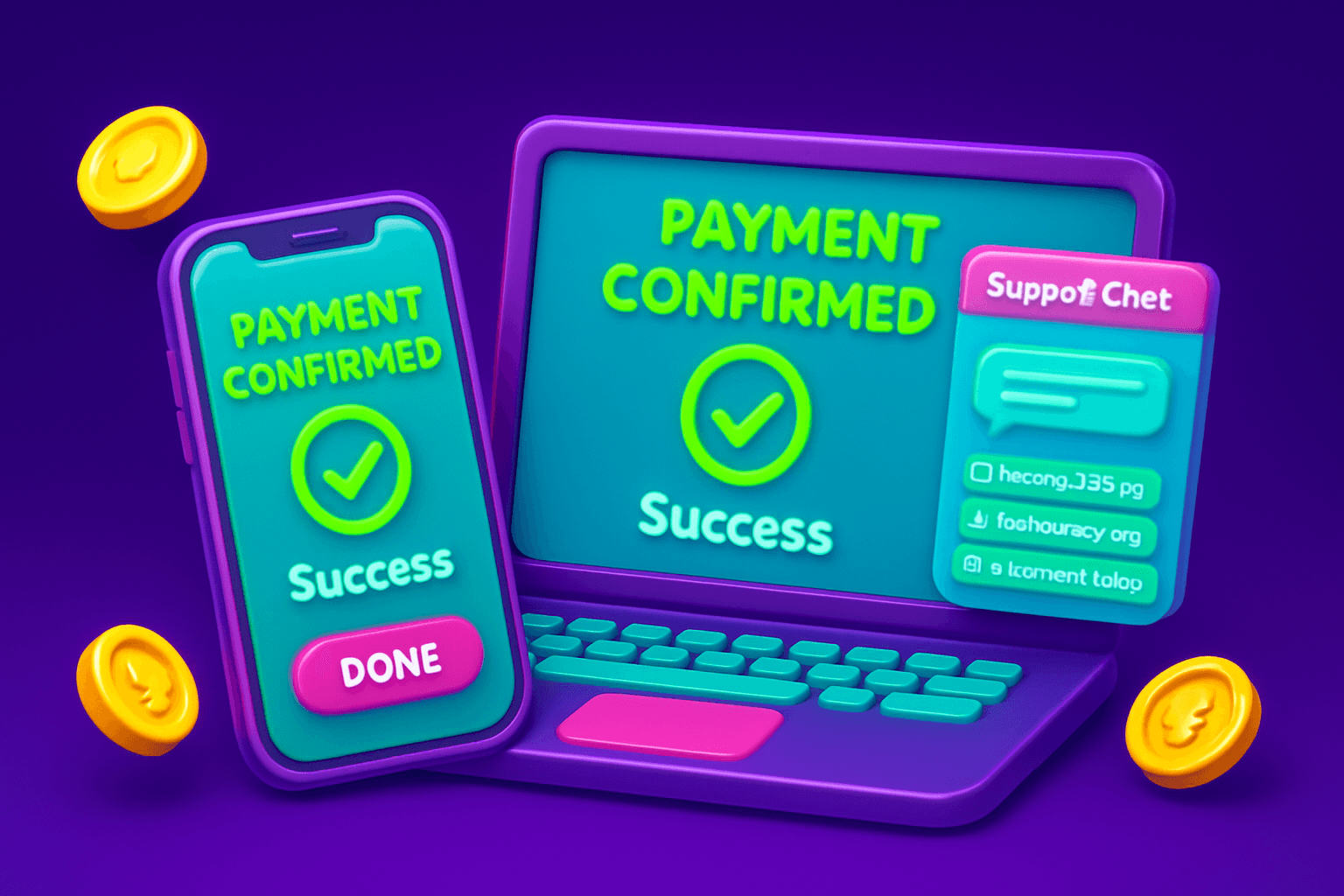
Quick claim: good screenshots get faster help
If you need support for a missing payout, the first reply from support usually depends on proof. A few clear screenshots will solve most problems faster than long back-and-forth explanations. This guide shows exactly what to capture, how to edit and name files, and a short message template you can paste into Playpot support.
Playpot is a free play-to-earn rewards site. Play games, take surveys, and complete app offers to earn coins, then cash out real money via PayPal, Venmo, or Cash App. No download, play right in your browser.
Why clear screenshots matter
Support teams handle many similar requests. A clear screenshot that shows the key details reduces manual checks and speeds verification. Good images help in three ways:
- They prove a transaction or confirmation timestamp.
- They let support match a payout to the correct account quickly.
- They cut down follow-up questions, so you get resolved faster.
Aim to make your screenshots readable at a glance, with the account email and transaction ID visible when possible.
Exactly what to capture
When preparing screenshots for a payout issue, include these shots where applicable:
- Account overview or profile screen that shows your Playpot username or email.
- The cashout request or confirmation screen inside Playpot, showing amount, payout method, and date/time. If you used PayPal, Venmo, Cash App, Zelle, or gift cards, capture the method name.
- Confirmation from the payout service: PayPal payment sent screen, Venmo confirmation, or a bank transaction showing the incoming amount.
- Transaction IDs, payment reference, or any confirmation codes. These are the fastest way for support to match records.
- If the payout shows pending or failed, capture the error message or status text.
If multiple screens are needed, capture each one. A short, labeled set is better than a single cluttered image.

How to take screenshots, by platform
-
Web or Desktop: Use your browser's screenshot tool or Print to PDF to capture the full page. On Windows, Win+Shift+S opens a snip tool. On macOS, press Shift-Command-4 to select an area, or Shift-Command-5 for full-window options.
-
iOS: Press the side button and volume up together (newer devices), or side and home on older models. Open the screenshot preview, use the crop tool, then Done and Save to Files if you prefer a smaller file.
-
Android: Press the power and volume down buttons together. Many phones let you long-press the preview to edit and crop immediately.
-
If you need to capture a scrolling page, use a full-page capture option in your browser or a built-in long screenshot feature on your phone. Aim to keep the important fields in the top third of the image for quick viewing.
Crop, redact, and annotate for clarity
Before sending, do quick edits:
- Crop so only the relevant area is visible. Remove unrelated personal info that clutters the image.
- Redact sensitive data you do not want support to store, like full bank account numbers. Leave the last four digits if they help identify the transaction.
- Use a circle or rectangle to highlight the transaction ID, amount, or date. One simple annotation is enough. Avoid heavy markup that hides text.
Most phones and desktops include basic editors that let you crop and draw. Save a copy rather than overwriting the original until the issue is resolved.
File format, size, and naming
- Format: PNG for crisp text-heavy screenshots, JPEG for photographs or when you need smaller files. PDFs are fine for multi-page captures.
- Size: Aim for under 5 MB per file unless the support team requests otherwise. If you have several images, compress them or bundle them in a single PDF.
- Naming: Use clear, chronological filenames so support can follow the sequence. Example conventions:
- playpot-account-2026-07-04.png
- payout-confirmation-paypal-2026-07-04.png
- paypal-receipt-transactionID12345.png
Clear names reduce back-and-forth when support downloads attachments.
What to write in your initial message
Paste this short, editable template into the support chat or email. Fill the bracketed fields.
Hello, I made a cashout from Playpot on [date]. My Playpot account email is [email]. The payout was for $[amount] and the method used was [PayPal / Venmo / Cash App / Zelle / gift card]. Attached are screenshots: 1) Playpot cashout confirmation, 2) payout service confirmation, 3) transaction ID. Please let me know if you need anything else. Thank you.
This format highlights the key facts support needs: account, date, amount, method, and proof. Attach your screenshots after the message.
Example scenarios and priorities
- Missing funds after a confirmed cashout: Attach Playpot confirmation and the payout service confirmation. Highlight transaction IDs and timestamps.
- Payment shows pending for several days: Capture the Playpot cashout status and your payout service activity or pending transactions page.
- Wrong amount received: Include both Playpot confirmation and the received payment screenshot that shows the amount credited to your payout account.
In many cases, players report realistic outcomes: most users see small monthly earnings from play-to-earn sites, often in the $10 to $150 range. If you hit the minimum cashout, remember Playpot requires $20 to cash out.

Another tool worth knowing
If you need to send several screenshots or larger files to support, a lightweight file-sharing tool can help you bundle them without creating multiple email attachments. Foldr.space makes it easy to upload a few images and share a single link, which is handy when you have long receipts or multi-page captures.
Quick checklist before you hit send
- Do the screenshots show account email and transaction ID? Yes / No
- Is the payout method visible (PayPal, Venmo, Cash App, Zelle, gift cards)? Yes / No
- Have you cropped and lightly annotated key fields? Yes / No
- Are filenames clear and dated? Yes / No
- Is total attachment size reasonable, or did you upload a single link? Yes / No
Good screenshots speed support replies and reduce the chance of follow-up questions. Keep copies of your originals until the case is closed, and remember the basic facts: Playpot supports cashouts starting at $20, and you can cash out via PayPal, Venmo, Cash App, Zelle, or gift cards. Tap. Play. Cash out.
Turn this into real money with Playpot
Play games, take surveys, and complete offers — earn from your very first one and cash out real money.
Play nowGet the best-paying offers by email
Drop your email and we will send the best-paying offers so you can start earning the moment you sign up.
We use your email to send the bonus code and occasional Playpot updates. Unsubscribe in one click.